Transform Your Old Tablet Into a Second Monitor for Windows Without Spending a Dime
Why Use an Old Tablet as a Portable Monitor?
If you’re looking for a second screen for your laptop but don’t want to drop $100–$200 on a portable monitor—or more if you want touch support—you might already own the perfect solution: that forgotten tablet sitting in a drawer. With a free app called Spacedesk, you can turn almost any iPad or Android tablet into a genuine extended display for your Windows PC. This isn’t just screen mirroring; it’s a full second monitor where you can drag windows, run apps, and boost your productivity on the go.
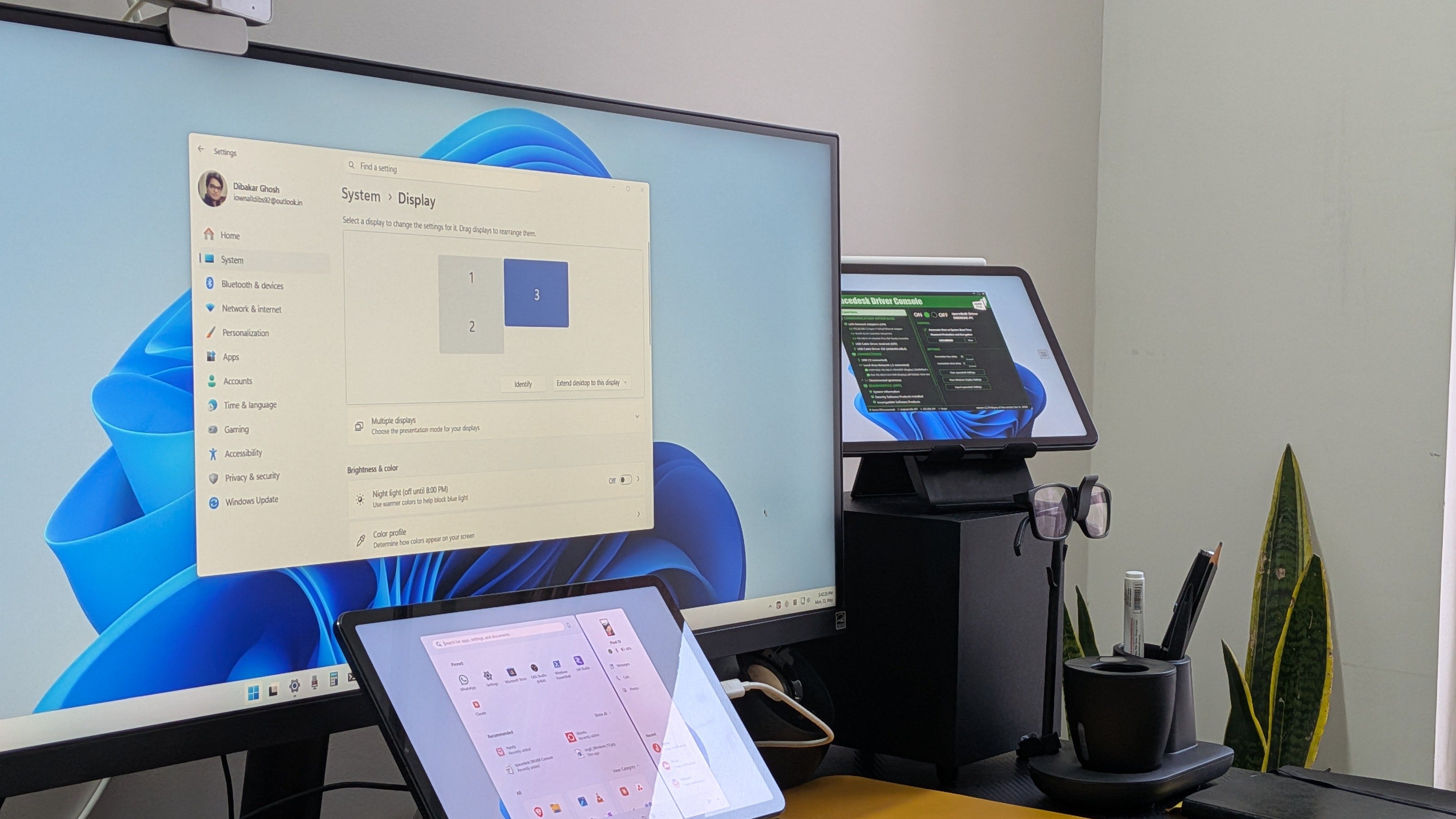
How Spacedesk Turns Your Tablet Into a Second Monitor
Spacedesk works over your local network (Wi‑Fi or USB) to turn your tablet into an extra screen. The tablet displays a virtual monitor that Windows recognizes as a real display. You can extend your desktop, move applications between screens, and even adjust resolution and orientation. The app is lightweight and free, making it an ideal zero‑cost upgrade for remote workers, students, or anyone who needs more screen real estate.
What You’ll Need
- A Windows PC (Windows 7, 8, 10, or 11) with the Spacedesk driver installed.
- An iPad or Android tablet (iPadOS 9.0+ or Android 4.1+) with the Spacedesk Viewer app from the App Store or Google Play.
- A stable local network (Wi‑Fi 5 or better) or a USB‑tethering connection for lower latency.
- Compatible cables if you choose USB mode (lightning for older iPads, USB‑C for modern devices).
Step‑by‑Step Setup Guide
- Install the Spacedesk driver on your Windows PC. Download it from the official Spacedesk website and run the installer. Restart your computer if prompted.
- Install the Spacedesk Viewer app on your tablet. Go to the respective app store and search for “Spacedesk.” Download and open the app.
- Connect both devices to the same Wi‑Fi network. For the best performance, use a 5 GHz band or connect the tablet via USB tethering.
- Open the Viewer app. It will automatically scan for your PC. Tap the computer name to connect.
- Your tablet will now show a second desktop. You can drag windows onto it, and it will function as an extended monitor. To mirror instead of extend, change the display mode in Windows settings (
Display Settings > Multiple displays). - Adjust resolution and orientation. In the Viewer app, you can choose your tablet’s native resolution or a lower one for smoother performance. You can also rotate the screen to portrait mode.
Maximizing Performance and Reducing Lag
Spacedesk works well over a good Wi‑Fi connection, but for applications that need low latency—like video editing or gaming—use a wired USB connection. Enable USB tethering on your tablet and select the USB‑TCP option in the Viewer app. Also, reduce the resolution if you experience stuttering. For touch‑based interaction, Spacedesk supports touch input on Android tablets, turning your old device into a touchscreen monitor for Windows.
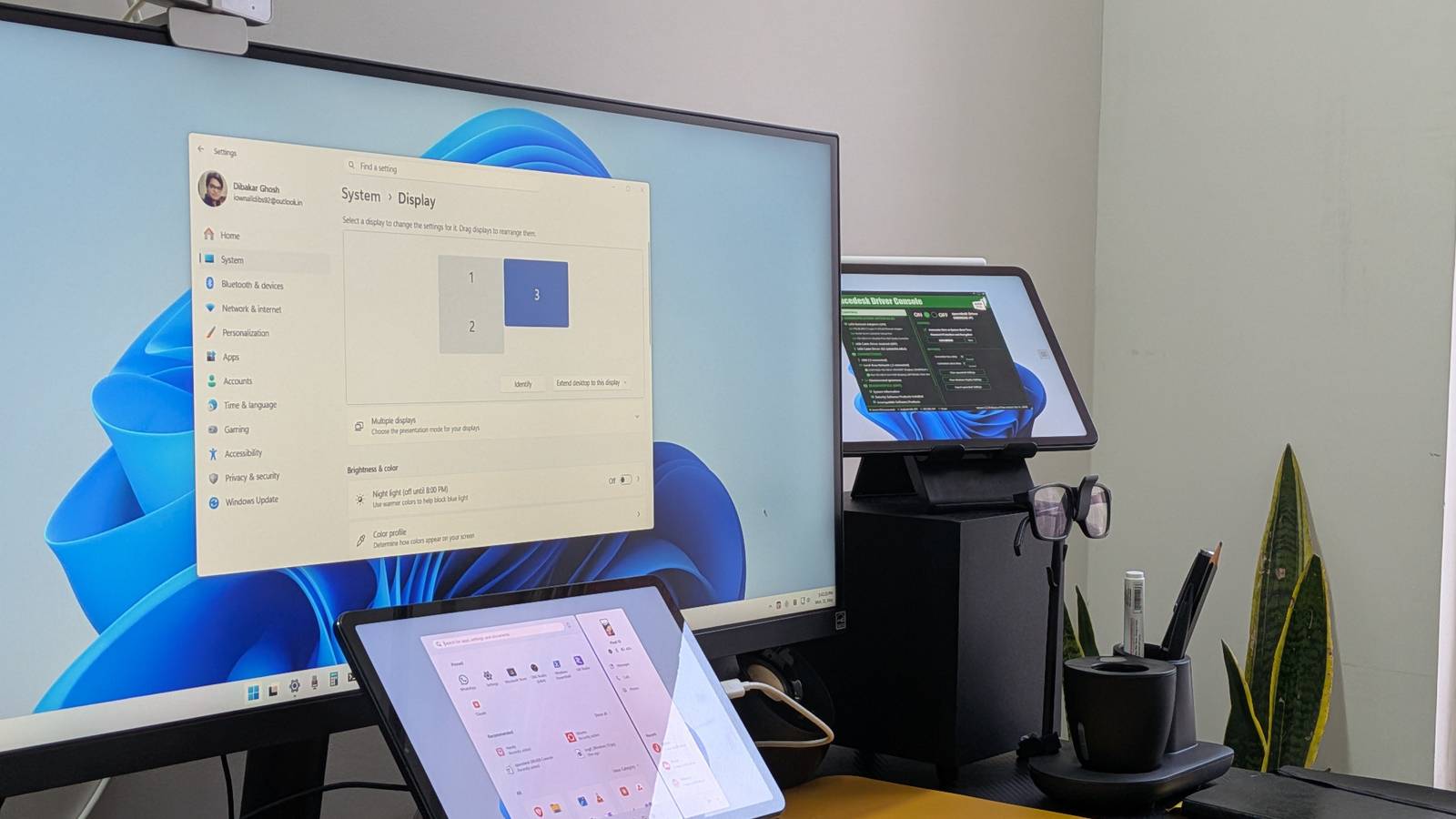
Other Apps and Methods
While Spacedesk is the most popular free solution, you can also try Twomon or Duet Display (both paid) for higher reliability and lower latency, especially over USB. If your tablet is a Microsoft Surface (Windows based), you can use Windows’ built‑in “Projecting to this PC” feature. But for most people, Spacedesk offers the best balance of cost and functionality.
Common Issues and Fixes
My Tablet Won’t Find the PC
- Make sure both devices are on the same Wi‑Fi network.
- Check that Windows Firewall isn’t blocking Spacedesk. Add an exception for the Spacedesk service in Windows Defender Firewall.
- Restart both the PC and the tablet.
Screen Is Laggy
- Switch to a 5 GHz Wi‑Fi network.
- Lower the resolution in the Viewer app.
- Use a USB‑C or Lightning cable with USB tethering.
Touchscreen Isn’t Working on Windows
- Ensure your tablet supports touch and that Spacedesk has touch permissions (on Android, enable “Draw over other apps”).
- On iPad, touch input is limited to mouse/trackpad via iPadOS 13+; full touch support may require a paid alternative like Duet.
Unlock Your Tablet’s Hidden Potential
Turning an old tablet into a portable monitor is one of the smartest tech hacks you can do with zero investment. It saves you money, declutters your drawer, and adds a second screen for coding, writing, design, or just multitasking. With Spacedesk’s easy setup and solid performance, you can get a genuine extended display experience in minutes. So dust off that old tablet, follow the steps above, and double your screen space for free.
Related Articles
- Your Ultimate Guide to Catching the Eta Aquariid Meteor Shower: From Halley's Comet Debris to Shooting Stars
- The Lone Survivor: How Neptune's Moon Nereid Outlasted a Cataclysmic Past
- Global Leaders Forge Path Away from Fossil Fuels at Historic Santa Marta Summit
- Astronomers Unveil Massive Halo Surrounding Sombrero Galaxy in Striking New Image
- Three Tech Trends Reshaping Our Future: IVF Innovations, Balcony Solar, and the Rise of AI Resistance
- Vaonis Vespera III and Vespera Pro 2: Breaking Down the Upgrades
- Apple's Latest Budget Laptop Powered by 'Defective' Chips – Industry Insider Confirms Common Practice
- Transforming R&D with Agentic AI: Inside Microsoft Discovery